Introduction
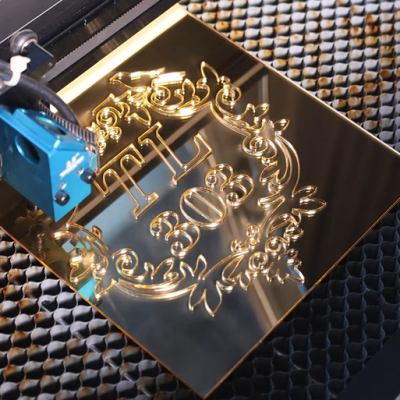
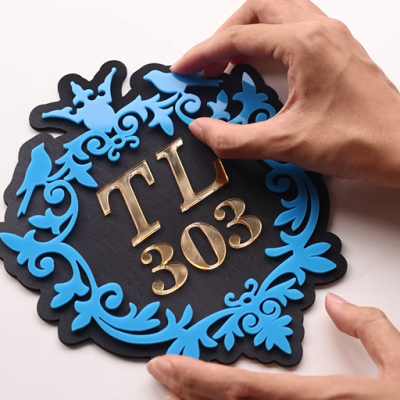
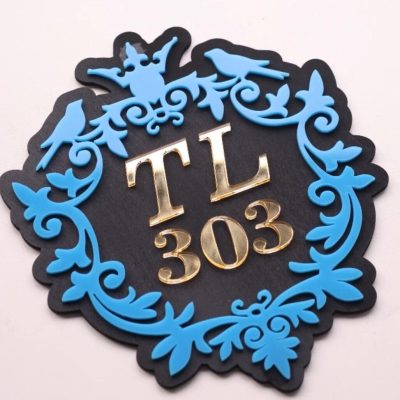
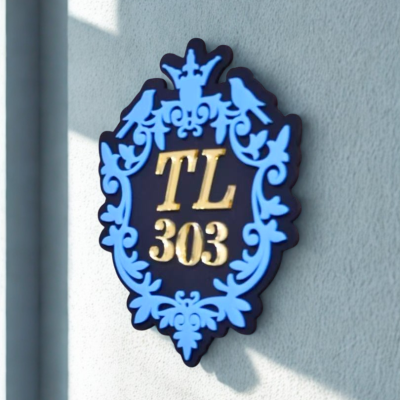
Looking for a creative way to make your home entrance stand out? With just a laser cutter, some acrylic, and a wooden base, you can design a modern, eye-catching house number sign. This project is simple, stylish, and perfect for personalizing your space.
Machine Used
Thunder Bolt 30W
Material Needed
3mm Plywood
3mm Acrylic (any color)
Settings
Cutting
- Speed:10mm/s
- Max Power:90%
- Min Power:10%
- Number of Passes:1
Before your work begins
- Verify the lens is clean or there's no problem in the laser.
- Make sure the exhaust fan is working well.
- Ensure the air assist is on.
Step 1: Get Materials Ready and Place them on the Laser Bed
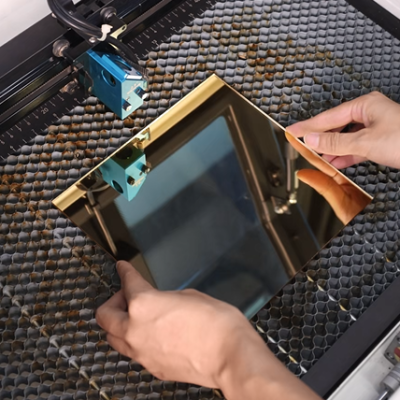
Lay your wood sheet flat on the work bed, making sure it’s secured with pins or magnets. Do the same for the acrylic sheet—both materials should stay steady during cutting.
- Tips:
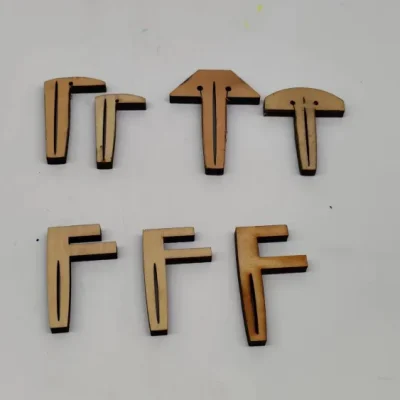
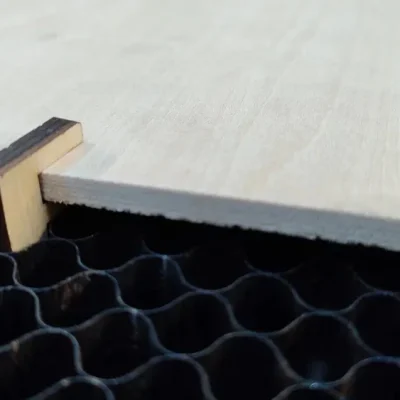
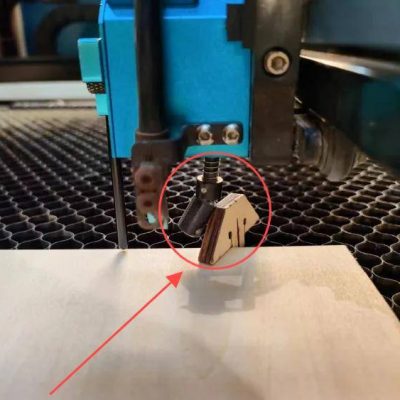
- There are three common types of pins: T-shaped, L-shaped, and F-shaped. A special use for F-shaped pins is clamping up the plywood to prevent burn marks. Be mindful of the height of the magnets and pins. If they are too tall, the sensor might hit them and become damaged during processing.
3 common types of pins
F-shaped pin usage
Sensor hits a too high pin
Step 2: Open the File and Check the Settings
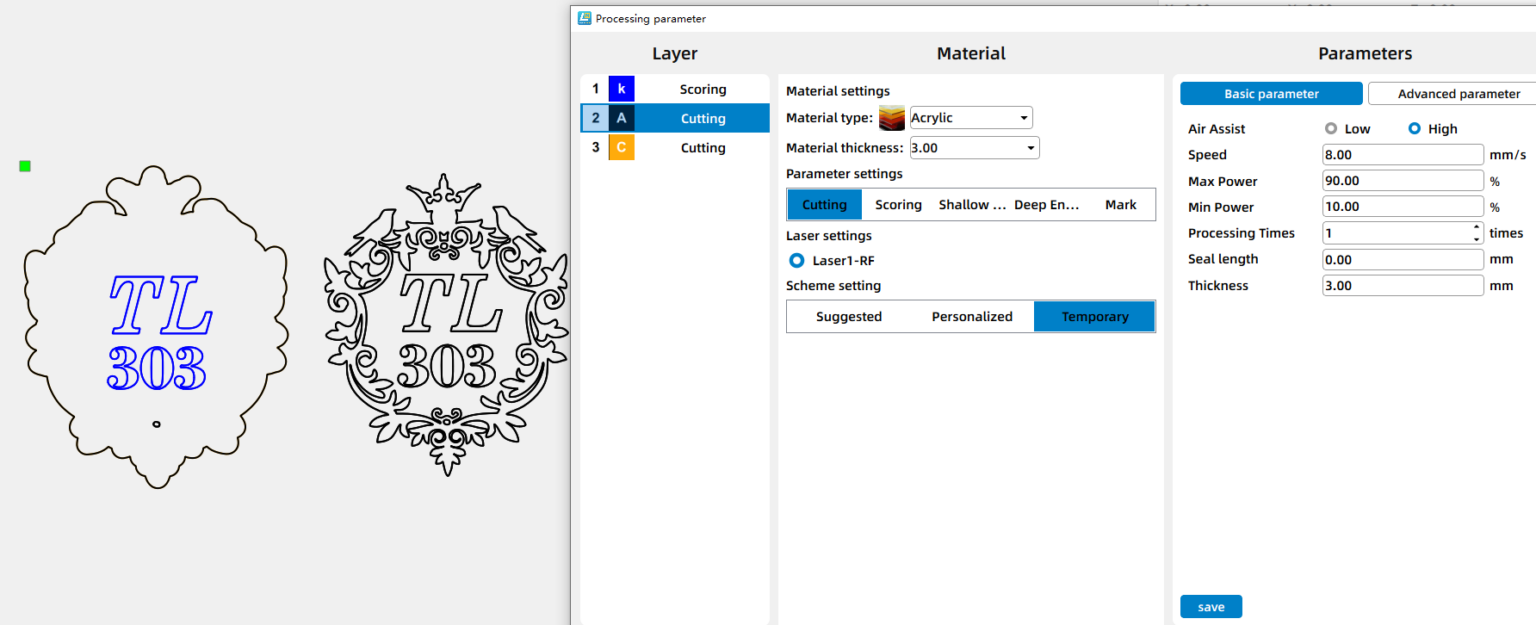
Either design your personalized layout directly in your laser software (LightBurn, LaserMaker, etc.) or open the template file you downloadedhere. Use vector files for cutting and high-resolution PNG/JPG for photo-style engraves. Scale the artwork to the final physical size, check your units (mm/in), and assign clear layers or colors for engrave vs cut (e.g., red = cut, black = engrave). Make sure cut lines are hairline/stroke-only and that any text is converted to outlines/paths.
Before moving on, tidy the file: ungroup grouped objects, remove hidden layers, and confirm there are no tiny stray nodes. Account for kerf or tab fit where pieces slot together (add/subtract a small offset if needed). Finally, run the software Frame/Preview, save a copy of the project, and — if possible — test a small element on scrap material to verify scale and layer settings.
Tip: If you’re using my downloaded file, double-check its parameters after importing; templates sometimes import at a different DPI or unit.
Step 3: Focus Your Laser Machine
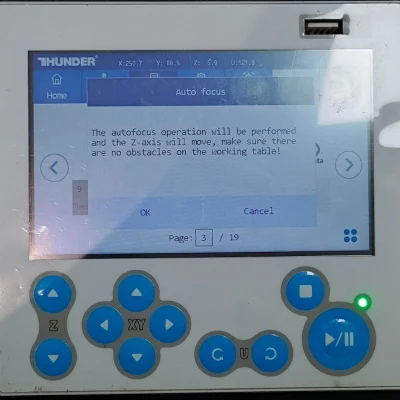
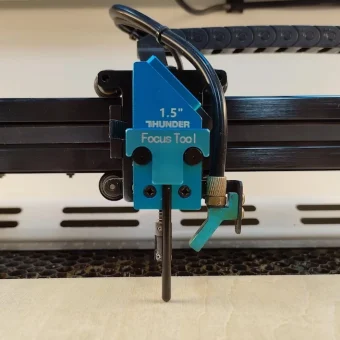
- Proper focusing ensures neat, polished edges. If your machine has auto focus, use it for quick setup. For manual focusing, lower the laser head with the focus stick until it touches the wood surface at a perfect angle. Always double-check before cutting.
Auto focus
Manual focus
Step 4: Frame the Design and Start Laser Cutting
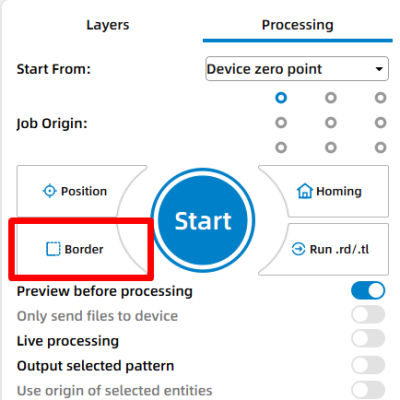
- Use the software’s border option to trace the outline of the design with a red light. This confirms your material placement and avoids wasting materials. Adjust as necessary.
Step 5: Monitor the Laser Cutting Process
- Stay close to the machine while it’s running and watch the cutting and engraving progress. Keep an eye out for excessive smoke, small flame-ups, or any movement of the material that could affect the outcome. Make sure your workspace is well-ventilated, and rely on air assist if available to achieve cleaner edges on the wood.
Step 6: Glue/Adhere the Layers Together
Use a strong adhesive suitable for both wood and acrylic. Apply glue to the back of the acrylic numbers and press them firmly onto the wooden base. Make sure they are aligned before the glue sets.
Step 7: Complete the Task
- Once the glue has dried, your custom house number sign is complete! Mount it by your door and give your entrance a fresh, personalized look.
Come and Try!
- My house number sign is ready—what about yours? With just a few materials and a laser cutter, you can create one that’s even more unique. Try it out and give your home the standout style it deserves.
International
United States
Brasil
Canada
Costa Rica
Mexico
Česká
Romania
Polska
Ireland
Portugal
Lietuva
Россия
Deutschland
Britain
Україна
France
Sverige
Italia
Norway
Denmark
Ελλάδα
한국
中国
ประเทศไทย
中国香港
Israel
中國臺灣
India
پاکستان
پශ්රී ලංකා
ジャパン
Australia
New Zealand
South Africa