





RDWorks Installation Guide
 2024-05-30
WHAT ARE YOU LOOKING FOR?
Search Across Products, Blog Posts, Support Content, And Resources.

RDWorks Installation Guide
2024-05-30

RDWorks is a laser control software commonly used for preparing laser cutting and engraving jobs. When used with CorelDRAW, the RDWorks plug-in can help users import graphics more conveniently from CorelDRAW into RDWorks.
This guide explains the basic RDWorks installation workflow, including CorelDRAW parameter setup, RDWorks plug-in installation, macro initialization, and using the Laser Running button to import graphics.
Before installing the CorelDRAW plug-in, make sure the RDWorks main program has already been installed on your computer.
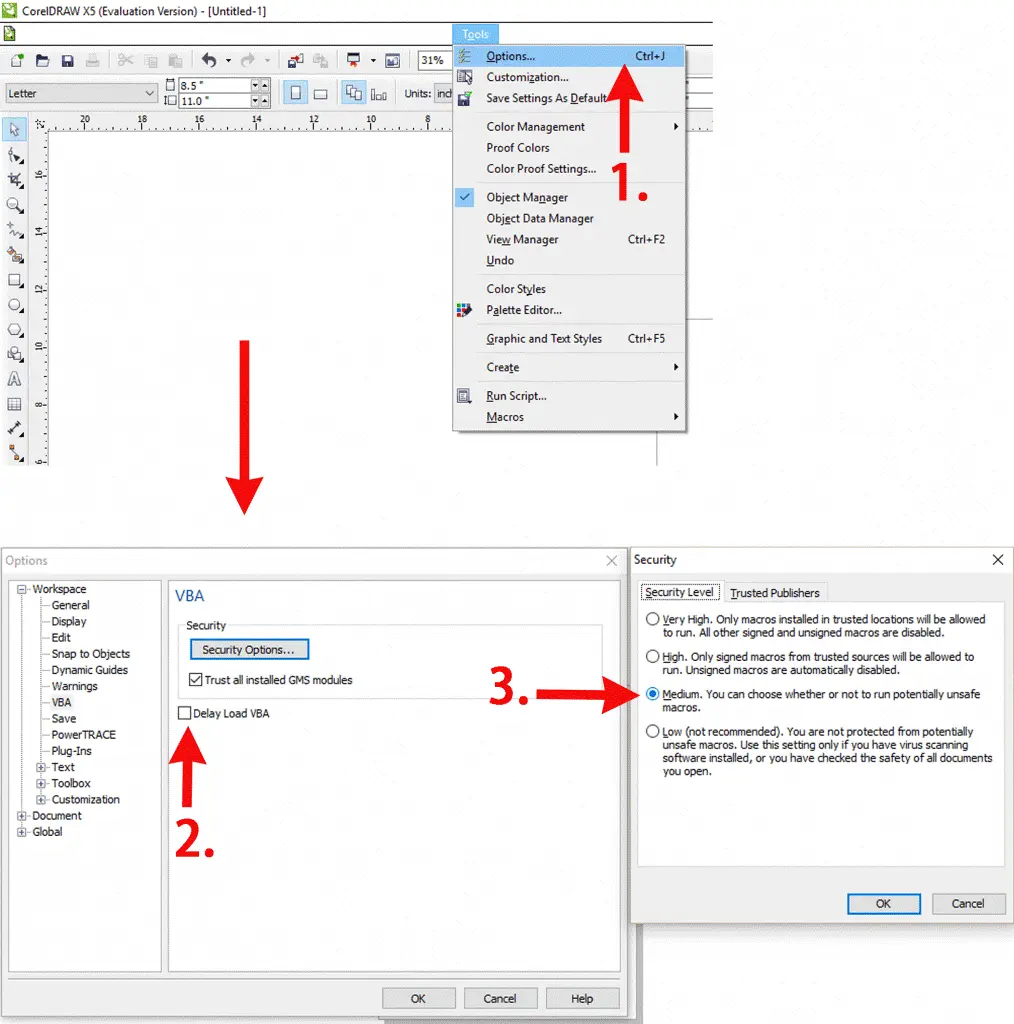
First, run CorelDRAW and set the parameters according to the instructions shown below. Correct parameter setup helps prepare CorelDRAW for the RDWorks plug-in workflow.
After setting the CorelDRAW parameters, close CorelDRAW. Then double-click to open the RDWorks installation program.
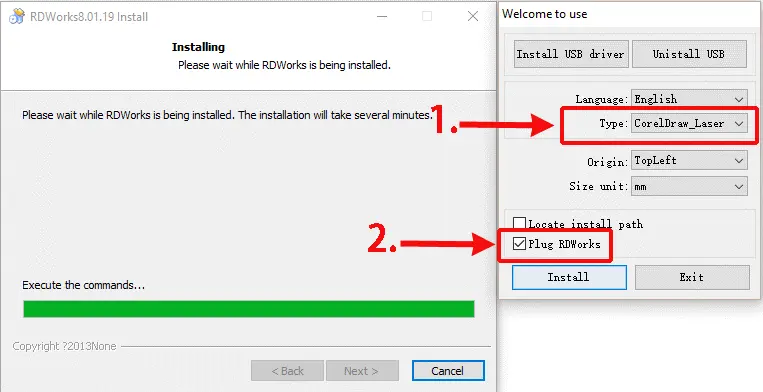
Choose the CorelDraw_Laser type, make sure the RDWorks main program has already been installed, and then tick the RDWorks item as shown below. Click “Install” and wait for the installation to complete.
After the installation is complete, run CorelDRAW again. Go to Tools > Macros > Run Macro.
In the macro selection area, choose Globalmacros (RDWorks15/16/17V8.gms), then select RDWorksV8.UserInit. Click “Run” to initialize the RDWorks macro.
After the macro is initialized, two additional buttons will appear in CorelDRAW. You can move these buttons to any convenient position in the interface.
After finishing your graphic design in CorelDRAW, click “Laser Running” to directly import the graphics into RDWorks.
Installing RDWorks with CorelDRAW mainly involves setting the CorelDRAW parameters, installing the RDWorks plug-in, running the RDWorks macro, and using the Laser Running button to send graphics into RDWorks.
Once the setup is complete, users can create graphics in CorelDRAW and import them into RDWorks more efficiently for laser cutting and engraving preparation.
A smooth RDWorks setup starts with the correct CorelDRAW parameters, a complete RDWorks main program installation, and proper macro initialization.
Talk To Our Experts Now!
Please leave your contact information so that we can serve you better.
RDWORKS INSTALLATION FAQS
The Laser Running button imports finished CorelDRAW graphics directly into RDWorks, making the laser job preparation workflow more convenient.
FIND THE RIGHT LASER FOR YOUR NEXT PROJECT
Explore Thunder Laser solutions designed for different materials, workflows, and production needs.


 Stable & Consistent MachinesUnlimited ApplicationsRobust After-sales SupportFactory Direct Supply