How to Use a U-Disk with Thunder Laser
 2024-06-13
WHAT ARE YOU LOOKING FOR?
Search Across Products, Blog Posts, Support Content, And Resources.

How to Use a U-Disk with Thunder Laser
2024-06-13

Using a U-Disk with Thunder Laser is a convenient way to transfer laser files from your computer to the machine. Instead of sending the job directly through a cable connection, you can save the design as an RD file from LightBurn or RDWorks, copy it to a compatible U-Disk, and then read the file from the laser machine panel.
This method is useful when you want to run saved jobs directly from the machine, copy files into machine memory, or move files between different computers and laser machines. This guide explains the correct operation steps and also covers common U-Disk recognition issues, including the “No U-File” message on the DSP panel.
The basic workflow is simple: save the file from LightBurn or RDWorks as an RD file, place the file in the correct location on the U-Disk, plug the U-Disk into the laser machine, and then read or copy the file from the machine control panel.
Open LightBurn or RDWorks, select your design, click “Save to RD file,” and choose the U-Disk as the save location. Make sure the file is saved as an .rd file.
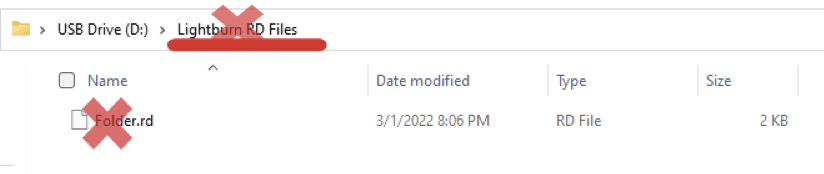
Important: Save the RD file directly in the root directory of the U-Disk. Do not place the file inside a folder, or the machine may not read it correctly.
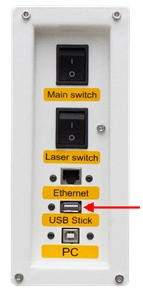
After the RD file is saved correctly, safely remove the U-Disk from your computer and plug it into the U-Disk port on the laser machine.
On the machine panel, follow this path: File → Udisk → Read Udisk → Copy to memory. After the file is copied to memory, you can select it on the machine panel and run the job.
How to Save and Read RD Files from a U-Disk
Sometimes the machine may not recognize the U-Disk. When this happens, the LCD panel may show “No U-File” after you choose “Read U-disk file.” The problem is usually related to U-Disk compatibility, file format, file location, file name, or the U-Disk port.
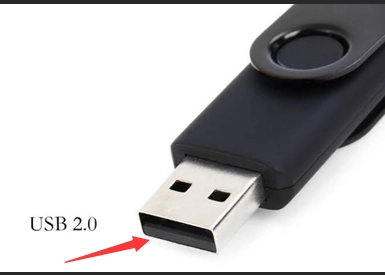
The machine can recognize a U-Disk with a capacity of 16 GB or below. The U-Disk should also use the USB 2.0 interface protocol.
To check the protocol, insert the USB drive into a PC or laptop and open Device Manager to check the USB port information. USB 2.0 usually has four pins: two for power and one pair for data. A black USB slot usually indicates USB 2.0.
Solution: Use a USB 2.0 U-Disk with a capacity of 16 GB or below for testing.
The file saved from RDWorks or LightBurn should be an .rd file. If the file format is incorrect, the machine will not read it properly.
When saving files to the U-Disk, store the RD file separately in the root directory. Do not save it inside a folder on the U-Disk.
Solution: Save the file in the correct .rd format and place it in the root directory of the U-Disk.
If the U-Disk itself is damaged or unstable, the machine may not be able to read it even when the file format and save location are correct.
Solution: Replace the U-Disk with a new compatible U-Disk and test again.
If the U-Disk type and file format are both correct, the external U-Disk port may be faulty.
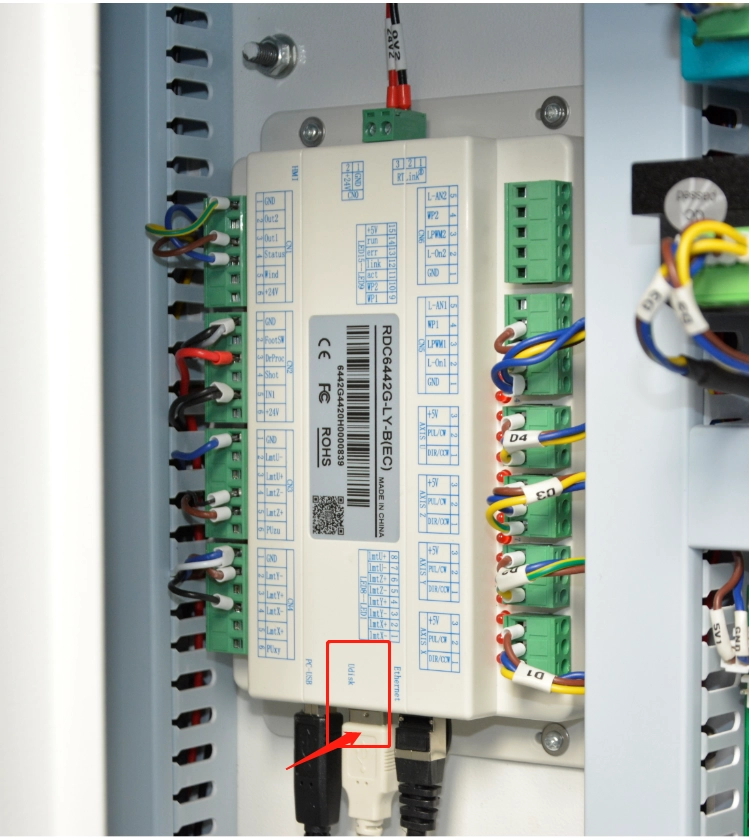
Open the left door of the machine and plug the U-Disk into the U-Disk port on the controller board.
Solution: If the U-Disk works when plugged into the controller board, the external U-Disk port on the side of the machine may be faulty.
Too many RD files on the U-Disk can cause reading problems. Odd symbols or long file names may also prevent the machine from recognizing files correctly.
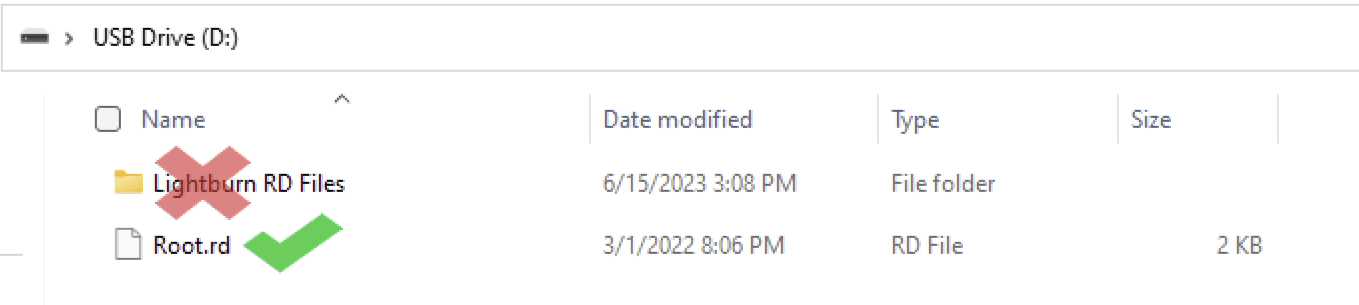
Files must be saved in the root directory of the U-Disk. They should not be placed inside a folder.
For example, saving the file directly to D: will work. Your USB drive may use a different drive letter such as E, F, or G.
Saving the file inside a folder, such as D:LightBurn RD Files, will not work. The machine will only read files placed in the root directory.
If the machine shows “No U-File,” check the following items before replacing parts or changing machine settings.
To use a U-Disk with Thunder Laser, save your design as an .rd file from LightBurn or RDWorks, place it in the root directory of a compatible USB 2.0 U-Disk, plug it into the machine, and read it from the Udisk menu on the panel.
If the machine shows “No U-File,” check the U-Disk capacity, USB protocol, file format, file location, file name, number of files, and U-Disk port. Most recognition issues can be solved by using a compatible U-Disk and saving the RD file correctly.
Need Help Using a U-Disk with Thunder Laser?
Contact Thunder Laser for guidance on RD files, LightBurn file transfer, RDWorks file transfer, DSP panel operation, and laser machine troubleshooting.
Contact UsTalk To Our Experts Now!
Please leave your contact information so that we can serve you better.
U-DISK FILE TRANSFER FAQS
FIND THE RIGHT LASER FOR YOUR NEXT PROJECT
Explore Thunder Laser solutions designed for different materials, workflows, and production needs.


 Stable & Consistent MachinesUnlimited ApplicationsRobust After-sales SupportFactory Direct Supply