


How to Laser Engrave a Photo: Image Prep, Dithering & Settings
 2026-09-23
WHAT ARE YOU LOOKING FOR?
Search Across Products, Blog Posts, Support Content, And Resources.

How to Laser Engrave a Photo: Image Prep, Dithering & Settings
2026-09-23

A good laser-engraved photo starts long before you press Start. Image quality, tonal range, final engraving size, dithering method, DPI, material response, focus, speed, and power all affect how much detail survives when a digital photograph becomes a physical engraving.
This guide focuses on the practical workflow: how to choose and prepare a photo, when to use grayscale or dithering, how to set up the image in LaserMaker, how to handle older RDWorks workflows, how to choose DPI, and how to troubleshoot dark, blurry, washed-out, or ghosted results.
If you are still deciding which material or laser machine is best for photo work, see our broader Photo Laser Engraving Guide. This page assumes you already want to engrave a photo and need to make the result better.
Quick Answer: How Do You Laser Engrave a Photo?
A digital photograph contains thousands or millions of pixels with different brightness values. A laser engraver has to translate those pixels into physical changes on the material. Depending on the workflow, it may vary laser energy according to grayscale values or convert the photograph into a pattern of black and white dots that visually simulate different tones.
The material then becomes part of the image. Wood darkens where it receives laser energy. Clear acrylic often develops a light frosted mark. Dark stone and slate frequently become lighter where engraved. Glass develops a frosted texture. Because these materials respond differently, the same digital photo should not be processed identically for every surface.
For a broader overview of photo engraving materials and machine types, use the Photo Laser Engraving Guide. The steps below focus specifically on preparing and engraving the image.
A high-resolution file helps, but pixel count alone does not make a good engraving photo. The laser has a limited ability to reproduce very small tonal differences, so the source image needs a subject that remains readable after color information and fine photographic detail are simplified.
Portraits usually work best when the face, eyes, hair, and outline are clearly separated from the background. A photograph with a small subject surrounded by a large amount of scenery may look good on a screen but lose important facial detail when reduced to a small physical engraving.
Photo engraving depends on tonal separation. Avoid images where large areas of the face disappear into deep shadow or where bright highlights are completely blown out. The best source usually contains enough information in the light, middle, and dark regions for the engraving process to separate them.
Trees, furniture, crowds, patterned walls, and distant objects can turn into visual noise after dithering. If the background does not contribute to the image, simplify or remove it before engraving so the available laser detail is spent on the subject that matters.
One of the most common mistakes is evaluating a photo while it fills a computer monitor. A face that looks detailed at 500% zoom may become only a few centimeters wide on the finished product.
Set the intended physical engraving size early. If the final portrait is small, crop closer to the subject instead of shrinking an entire full-body photograph into the same area.
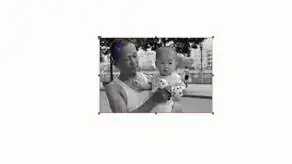
A clear source image with readable contrast gives the laser more useful information to reproduce.
Photo preparation should happen in a logical order. If you apply dithering too early and then continue resizing or editing the image, the dot pattern can be distorted. Complete the main photographic adjustments first and apply the final engraving-specific processing near the end.
Remove unused space and bring the important subject forward. For portraits, check that eyes, hair, clothing edges, and other recognizable features occupy enough of the final engraving area.
Reduce distracting background detail if it competes with the subject. This is especially useful for small portraits, memorial photos, and products where the viewer should immediately recognize a face rather than the surrounding scene.
Bring back useful information in highlights and shadows before increasing contrast aggressively. The goal is not to make the photograph look dramatic on screen. The goal is to give the engraving process distinguishable light, medium, and dark information.
Converting to grayscale makes it easier to judge the brightness information that will actually drive the engraving result. A color photograph may rely heavily on differences between colors that become almost identical once converted to grayscale.
Increase contrast only enough to make important features clearer. Too much contrast can turn hair, clothing, and shadow areas into solid dark regions while removing subtle facial tones.
Light sharpening can help define eyes, hair, fur, fabric texture, and architectural detail. Heavy sharpening can create halos and false edges that become exaggerated after dithering, so judge sharpening at the final engraving size rather than at extreme screen zoom.
Set the real width and height of the engraving before applying the final dot pattern. This makes it easier to judge whether small facial details, hair, text, or background features have enough physical space to remain visible.
Once the composition, tone, sharpness, and physical size are established, apply grayscale, dithering, dot-matrix, or halftone processing according to the software and material workflow you plan to use.
Grayscale and dithering solve the same basic problem in different ways: translating photographic tone into a material that cannot reproduce unlimited shades with perfect accuracy.
In a grayscale workflow, different pixel brightness levels are translated into different engraving intensity or power behavior. This can produce smooth-looking transitions when the machine, material, software, and settings respond consistently enough to reproduce them.
Dithering converts continuous grayscale tones into patterns of dark and light dots. Dense dots appear darker; sparse dots appear lighter. From normal viewing distance, the eye blends those dots into perceived intermediate tones.
| Image Method | Visual Behavior | When to Consider It |
|---|---|---|
| Grayscale | Uses tonal values directly rather than a fixed black-and-white dot pattern | When the material and engraving workflow can reproduce controlled tonal variation |
| Error-diffusion dither | Distributes dots irregularly to simulate photographic shading | Portraits, natural photos, fur, hair, and complex tonal images |
| Ordered / patterned dither | Uses a more regular dot structure | When a predictable texture or structured pattern works well with the material |
| Halftone | Builds tones with visible dots that change in spacing or size | Stylized photos and workflows where dot size, line frequency, and angle can be controlled |
| Threshold | Converts the image to pure black and white | Logos, silhouettes, line graphics, or deliberately high-contrast photo styles |
The best image mode depends on the material, physical engraving size, available detail, and software workflow.
Algorithms such as Jarvis, Stucki, and other error-diffusion methods are commonly used in photo engraving workflows. They do not automatically make every photo better; compare the result on a representative part of the actual image rather than choosing an algorithm only by name.
For current Thunder Laser workflows, LaserMaker provides image-processing and material-testing tools in the same software environment. The exact available controls may vary with the current software version and connected Thunder Laser machine.
Import the processed bitmap image and confirm its final physical width and height. Avoid repeatedly scaling the image after the final dot or halftone structure has been created.
LaserMaker includes image-processing options for raster work. Current versions include Halftone Mode, which produces circular dot structures and allows DPI, LPI, and dot angle to be adjusted. Dot Matrix processing also includes Threshold behavior for pure black-and-white output.
Halftone DPI controls dot detail, while LPI changes line density. Dot angle can also change the visible pattern. Treat these as image-processing variables, not substitutes for laser speed, power, focus, or material testing.
Set an engraving DPI appropriate for the material and desired detail. Do not automatically choose the highest available value. If adjacent lines or dots overlap too heavily on the material, additional DPI can make the image darker or softer rather than sharper.
Current LaserMaker versions include a Material Test Matrix, including DPI as a test parameter for engraving. Use it to establish a working range for your machine and material before processing the finished product.
For photo engraving, a standard geometric matrix is useful for narrowing the range, but the final test should use part of the actual photograph because skin, hair, highlights, shadows, and small edges expose image-quality problems that a plain square cannot show.
Confirm the engraving area, frame the job on the actual workpiece, and focus the laser carefully. Run a small representative section before committing to the complete photo, especially when the material is expensive or difficult to replace.
You can also compare tested starting parameters in the Thunder Laser CO₂ Settings Library.
If your existing Thunder Laser workflow still uses RDWorks, the original photo-processing method remains useful as an alternative workflow. The controls and terminology are different from LaserMaker, so keep RDWorks output resolution, dither frequency, and machine engraving DPI conceptually separate.
Original Thunder Laser workflow for preparing a photo engraving in RDWorks.
Import the image into RDWorks and set its final physical size according to the workpiece. If possible, complete major cropping, tonal adjustment, and cleanup before this stage.
Open the BMP processing controls and enable “Set output resolution.” The original Thunder Laser RDWorks workflow uses approximately 1000–1500 for this bitmap-processing setting.
Do not confuse this RDWorks bitmap output-resolution value with the engraving DPI discussed later in this article. They describe different parts of the workflow.
Select Dither and use the Net Graphic workflow shown in the original tutorial. A frequency around 30 can be used as an initial comparison, but larger dots may remove detail. The original workflow commonly tests higher values around 50–70 when a finer dot structure is required.
Treat these values as RDWorks image-processing references rather than universal laser settings. The final appearance still depends on physical engraving size and how the chosen material responds to each dot.
Apply the bitmap processing and inspect the preview. Zoom in to check whether facial detail, hair, edges, and important highlights remain distinguishable. If the dots are too coarse or important features merge together, return to the image settings instead of trying to fix every problem with laser power.
“Resolution” can refer to several different things in photo engraving. Keeping them separate prevents one of the most common setup mistakes.
| Term | What It Means | Why It Matters |
|---|---|---|
| Source image resolution | Pixel dimensions of the original photo | Determines how much original visual information is available before engraving |
| Engraving DPI | Density of engraving lines or dots across the physical workpiece | Affects physical dot overlap, detail, darkness, and processing time |
| Dither / Halftone frequency | Controls how tonal dots or patterns are generated | Changes visible texture and how tonal transitions are simulated |
Source pixels, engraving DPI, and halftone or dither frequency are related, but they are not the same setting.
The laser spot has a physical size, and the material changes around that spot when energy is applied. If engraving lines are packed closer together than the material can resolve, they begin to overlap. The result may become darker, softer, deeper, or slower without producing additional useful photographic detail.
Different materials reproduce laser dots differently. A relatively soft or heat-sensitive surface may need more spacing between dots, while a material that creates a fine, localized mark may support a denser image.
Thunder Laser's real projects illustrate this difference. A wood photo engraving case used 300 DPI with Jarvis processing on a Bolt Pro, while a more recent marble photo project used 600 DPI after material-specific image preparation. These are project references, not universal numbers for every piece of wood or stone.
Do not decide whether to invert a photo only by asking whether the material is transparent. A better question is: Does the laser make the processed area visually darker or lighter?
| Material / Effect | Typical Visual Response | Image Preparation Direction |
|---|---|---|
| Wood | Engraved areas usually become darker | Usually begin with normal polarity |
| Slate / dark stone | Engraved areas often become lighter | Image inversion is commonly required |
| Dark marble | Processed areas commonly create a lighter visual mark | Test an inverted image first |
| Clear acrylic | CO₂ engraving creates a light frosted appearance | Depends on front/reverse engraving, background, and desired viewing effect |
| Glass | Laser creates a frosted light-scattering mark | Evaluate against the intended background and finished display |
Polarity should follow the visual response of the finished material rather than a single rule for every photo engraving.
For material-specific behavior, see the Thunder Laser guides for wood, acrylic, stone, slate and marble, and glass.
A generic speed-power matrix is useful for understanding the material, but a photo creates a more demanding test. Once you have narrowed the parameter range, crop a representative section from the real image and engrave that section several times.
Choose a crop containing several of these elements:
Then test a limited group of speed and power combinations around the promising range. If needed, repeat the best few samples with different DPI or image processing. Changing every variable at the same time makes it difficult to understand why the result improved.
For photo engraving, the best test pattern is often a representative section of the actual photo. A plain square can show burn depth, but it cannot show whether eyes, hair, highlights, shadows, and dithered transitions will remain readable.
| Problem | Likely Cause | What to Change |
|---|---|---|
| Photo looks too dark or muddy | Too much effective energy, excessive dot overlap, crushed shadows, or overly dense DPI | Reduce effective energy, reopen shadows, compare lower DPI, or use a more suitable dither |
| Photo looks washed out | Insufficient material response, weak contrast, or settings too light | Increase useful contrast and test a modest increase in effective engraving energy |
| Highlights disappear | Image preprocessing or engraving settings are burning areas that should remain light | Protect highlights during photo editing and reduce overlap or energy |
| Shadow detail becomes solid black | Original shadows are crushed or the material is overburning | Recover shadow information before dithering and test lighter engraving parameters |
| Face loses detail at small size | Too much composition compressed into too little physical area | Crop closer to the face or increase the final engraving size |
| Visible coarse dots | Dither or halftone structure is too coarse for the intended viewing distance | Compare a finer image-processing pattern, but confirm the material can physically resolve it |
| Image looks reversed or unnatural | Wrong polarity for the material response | Check whether the engraved area becomes lighter or darker and invert accordingly |
| Photo looks blurry even though the file is sharp | Poor focus, warped material, dirty optics, excessive heat, or too much dot overlap | Refocus, level the workpiece, clean optics, and compare less aggressive settings |
| Double edges or horizontal ghosting | Bidirectional scan-offset compensation may be incorrect | Check the machine-specific scan-offset settings before changing the photo file |
| Wood grain overwhelms the face | Strong grain pattern, unsuitable wood selection, or weak photo contrast | Use a smoother, more uniform wood surface and simplify the image tonal range |
Diagnose whether the problem comes from the digital image, material response, laser parameters, focus, or machine motion before changing multiple variables at once.
If fine details appear doubled in high-speed bidirectional engraving, the problem may not be the photograph or DPI at all. Scanning-offset compensation aligns engraving lines produced while the laser head moves in opposite directions.
Thunder Laser machines are calibrated for scan offset, and the correct machine-specific values should be retained in the engraving software. If an image develops consistent horizontal double edges at higher speeds, verify those settings before heavily editing the photo to compensate for a motion-calibration issue.
Actual projects are more useful than treating one setting as universal. The following Thunder Laser resources show how the same photo-engraving principles change with the material.
A Thunder Laser wood photo case used a Bolt Pro with 300 DPI, Jarvis image processing, one-way fill, and material-specific speed and power settings. The important takeaway is not that every wood photo should use exactly 300 DPI. It is that image mode, DPI, direction, speed, power, and wood response were tested as one complete workflow.
View the full Laser Engraved Photos on Wood Case Study.
Cast acrylic is particularly useful for detailed photo engraving because CO₂ engraving can create a clear frosted-white contrast. Image inversion, background choice, front-versus-reverse engraving, sharpening, and dithering should be evaluated together rather than applying one automatic transparent-material rule.
See the Acrylic Laser Processing Guide for more material-specific information.
Thunder Laser's 2026 marble memorial project used a carefully prepared high-resolution image, grayscale conversion, inversion, dithering, material testing, accurate focus, and a 600 DPI engraving workflow. Compared with the wood example, it demonstrates why photo settings should follow the material rather than one generic DPI recommendation.
You can also explore more project-based tutorials in the Thunder Laser Inspiration Library.
The most important lesson is that photo engraving is not simply a matter of increasing resolution or copying a power setting. A strong result comes from matching the digital image, dot structure, physical engraving size, laser parameters, and material response as one system.
Need Help Testing a Photo on Your Material?
If you are unsure how your wood, acrylic, stone, glass, or other material will reproduce a photograph, Thunder Laser can test representative material and help establish a suitable processing direction.
Request Material TestingTalk To Our Experts Now!
Please leave your contact information so that we can serve you better.
LASER PHOTO ENGRAVING FAQS
FIND THE RIGHT LASER FOR YOUR NEXT PROJECT
Explore Thunder Laser solutions designed for different materials, workflows, and production needs.


 Stable & Consistent MachinesUnlimited ApplicationsRobust After-sales SupportFactory Direct Supply


