How Dual Air Assist Improves Laser Cutting and Engraving
 2022-08-27
WHAT ARE YOU LOOKING FOR?
Search Across Products, Blog Posts, Support Content, And Resources.

How Dual Air Assist Improves Laser Cutting and Engraving
2022-08-27

Air assist is one of the most practical features in laser cutting and engraving. It helps remove smoke, cool the material surface, protect the optical path, and improve the final processing quality. On Thunder Laser machines with dual air assist, users can switch between high airflow for cutting and lower airflow for engraving by controlling the air assist setting in the software layer.
This guide explains how the dual air assist system works, how the Cut and Engrave modes are controlled, how to use the feature in RDWorks and LightBurn, and when adding a high-pressure air compressor may be helpful.
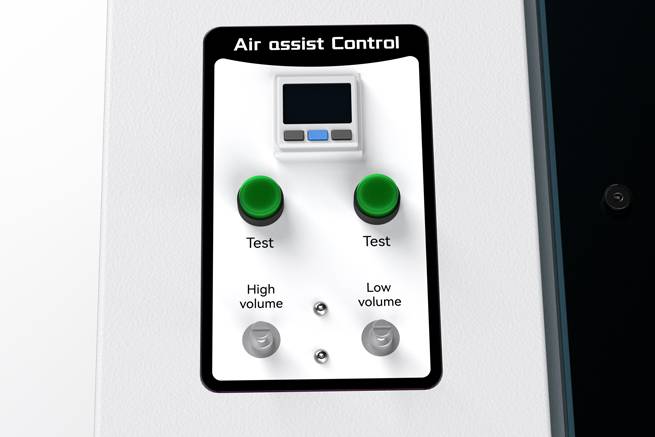
Dual air assist provides two airflow modes for different laser processes: Cut and Engrave. The two air solenoids are controlled by the smart board, while two needle valves on the front left panel allow users to adjust the airflow level for each mode.
The system also includes momentary push buttons for testing airflow. When a test button is pressed, the corresponding air stage activates for 10 seconds, making it easier to check and fine-tune the flow before starting a job.
In practical use, air assist OFF activates the Engrave stage, while air assist ON activates the Cut stage.
Cut mode is designed for stronger airflow. When cutting, higher air pressure helps remove smoke and debris from the kerf, reduce charring, and improve edge quality. For many cutting jobs, especially on thicker materials, stronger airflow can also help the laser process more efficiently.
Engrave mode uses lower airflow. During engraving, the goal is to clear smoke and fine particles without blowing too strongly across the material surface. Excessive airflow can affect fine details or disturb the engraved pattern, so a stable, gentle airflow is usually more suitable for detailed engraving.
In the Thunder Laser version of RDWorks, each layer can use the air assist setting to choose the proper air stage. The drop-down setting offers ON and OFF options for cutting and engraving workflows.
The same logic also works in LightBurn. For engraving, turn air assist off in the cut settings. For cutting, turn air assist on, and the machine will select the Cut air stage.
If your work involves frequent laser cutting, adding a high-pressure air compressor may be worthwhile. Stronger airflow can help create cleaner cut edges, reduce smoke buildup, and improve cutting performance on suitable materials.
If your work is mainly engraving, a high-pressure compressor may not be necessary. Engraving usually benefits from a lower, steadier airflow that clears smoke without disturbing fine detail.
For users who want to quantify and monitor air assist pressure, an air pressure monitor can be a useful addition. A monitor can be set with a low-pressure threshold. If the air pressure drops below that level, the display can change from green to red, and the relay output can be used to trigger an alarm, stop the machine, or activate a secondary compressor behind a check valve as a redundant air supply.
A reliable air assist setup helps improve processing quality and can also support safer laser operation by reducing smoke, heat, and debris around the cutting or engraving area.
Choose the Right Air Assist Setup for Your Laser Workflow
Whether you focus on cutting, engraving, or mixed production, Thunder Laser can help you find a machine and airflow setup that fits your materials and daily workflow.
Contact UsTalk To Our Experts Now!
Please leave your contact information so that we can serve you better.
DUAL AIR ASSIST FAQS
FIND THE RIGHT LASER FOR YOUR NEXT PROJECT
Explore Thunder Laser solutions designed for different materials, workflows, and production needs.


 Stable & Consistent MachinesUnlimited ApplicationsRobust After-sales SupportFactory Direct Supply