


Common Software for Laser Cutting Machines
 2022-10-11

Bolt-Serie
Professionelle Lasergraviermaschine für hochpräzise Ergebnisse

Nova-Serie
Großformat-CO₂-Laserschneider mit Glasröhre

Nova Plus-Serie
Professionelle RF-CO₂-Laserschneidmaschine

Titan-Serie
Industrielles RF-CO₂-Lasersystem

Titan Pro-Serie
Industrielles Lasersystem mit RF-CO₂- und MOPA-Faserlaser


WAS SUCHEN SIE FÜR?
Suche über Produkte, Blog-Beiträge, Support-Inhalte und Ressourcen.

Common Software for Laser Cutting Machines
2022-10-11

Choosing the right laser cutting software depends on the machine controller, laser type, operating system, file format, and production workflow. Some programs create or edit graphics, while others set processing parameters, control the laser machine, or combine design and machine control in one interface.
Users searching for a laser cutting software name may encounter RDWorks, AutoLaser, LightBurn, EzCAD, LaserMaker, AutoCAD, CorelDRAW, Adobe Illustrator, and Inkscape. These programs do not perform the same job. RDWorks and AutoLaser are associated with selected laser controllers, EzCAD is commonly used with galvo laser marking systems, and CAD or graphics software is mainly used to prepare designs.
This guide compares free and paid software, explains how to select CO2 laser cutting software, introduces safe software download practices, and clarifies the difference between raster and vector graphics for cutting and engraving.
Software used to prepare and control laser cutting and engraving jobs
CO2 laser cutting machine software normally imports design files, assigns layers, sets speed and power, defines cutting or engraving operations, and transfers the completed job to a compatible laser controller. Compatibility is more important than the number of available features because control software must communicate correctly with the machine.
RDWorks is commonly associated with Ruida controllers and is familiar to many users of Chinese CO2 laser machines. It can import common design formats, organize jobs by layer, configure processing parameters, and send files to compatible equipment.
AutoLaser is control software used with selected laser machine configurations. Users searching for an auto laser software download or autolaser software download should first confirm the controller model, machine configuration, software version, and operating-system compatibility with the original machine supplier.
Installing an unverified version can result in missing drivers, incorrect machine settings, communication problems, or files that are incompatible with the controller. The software name alone is not enough to establish compatibility.
LightBurn combines design preparation, layout, parameter setup, and machine control for supported controllers. It is often selected by users who want a more integrated CO2 laser cutting software workflow. Before purchasing or installing it, confirm that the controller in your laser machine appears on the software provider’s compatibility list.
Thunder Laser software resources include LaserMaker, software manuals, updates, and other downloads for supported Thunder Laser machines. LaserMaker supports design preparation, laser cutting and engraving setup, camera-assisted workflows, and production functions for compatible equipment.
Visit the Thunder Laser Download Center for currently available software and documentation, or explore the LaserMaker software page for product information and supported workflows.
| Software | Main Role | Typical Application | Compatibility Check |
|---|---|---|---|
| RDWorks | Machine control and job setup | Selected Ruida-controlled laser machines | Controller and software version |
| AutoLaser | Machine control and processing setup | Selected compatible laser systems | Machine supplier and controller model |
| LightBurn | Design and machine control | Supported CO2, diode, and galvo workflows | Official controller compatibility list |
| LaserMaker | Design, processing setup, and production workflow | Supported Thunder Laser machines | Machine series and software version |
| EzCAD | Galvo laser marking control | Compatible fiber, CO2 galvo, and UV marking systems | Control board, laser source, and driver |
A comparison of common laser control software, typical applications, and compatibility requirements.
Search phrases such as chinese laser engraver software download and laser cad software free download can lead to old installers, third-party file-sharing websites, modified software packages, or versions intended for a different controller. Downloading the first available file may create security and compatibility risks.
Before installing laser software, confirm the machine model, controller brand, controller firmware, computer operating system, required drivers, software version, and license conditions. Back up the machine configuration and parameter files whenever the software supports this function.
Important: A software package described as free does not automatically mean that it is compatible with every laser machine. Always match the software to the controller and machine configuration before installation.
Professional design software is often used when a project requires precise dimensions, detailed vector paths, engineering drawings, typography, complex layouts, or advanced file preparation. Common options include AutoCAD, CorelDRAW, and Adobe Illustrator.
AutoCAD is commonly used for technical drawings, dimensioned parts, architectural layouts, engineering files, and manufacturing designs. It is particularly useful when a laser cutting project requires accurate geometry and DXF or DWG file preparation.
CorelDRAW is widely used for vector drawing, signage, text layout, graphics preparation, and mixed vector-and-bitmap projects. Some laser workflows use plug-ins or export files from CorelDRAW into compatible machine-control software.
Adobe Illustrator is suitable for creating vector artwork, logos, packaging designs, signage, illustrations, and detailed cutting paths. Files are normally exported in a format supported by the laser control software.
Free design alternatives include Inkscape, SketchUp, and SolveSpace. Inkscape is especially useful for creating and editing SVG vector files, while SketchUp and SolveSpace can support selected modeling and technical-design workflows.
Bitmap processing software includes programs such as Adobe Photoshop and Painter. These tools are commonly used to prepare photographs, grayscale images, bitmap artwork, and image-based designs before laser engraving.
Image-processing tools can adjust resolution, contrast, brightness, grayscale range, sharpness, and dithering. The prepared image must still be imported into compatible laser control software before processing.
Understanding the difference between raster and vector graphics is important because the two file types are processed differently. Laser cutting mainly follows vector paths, while photographs and pixel-based artwork are generally used for raster engraving.
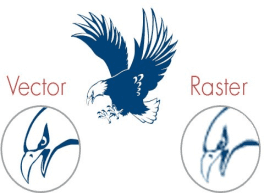
Vector drawing concept for laser cutting
A vector drawing is based on mathematically defined points, lines, curves, and shapes. Each graphic element can usually be edited, resized, moved, or recombined independently.
Vector graphics can be enlarged without the same pixelation associated with raster images. This makes them suitable for laser cutting paths, scoring lines, geometric components, text outlines, and precise line engraving.
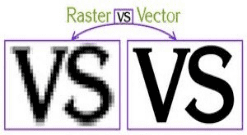
Vector graphics retain clean paths when scaled
A bitmap image, also known as a raster image, is composed of individual points called pixels. Each pixel contains color or grayscale information. When a low-resolution bitmap is enlarged, the individual pixels become visible and the image may appear blurred or distorted.
Bitmap files are suitable for photographs, detailed illustrations, grayscale artwork, and other image-based engraving projects. The engraving result depends on image quality, resolution, material response, laser settings, and the image-processing method used by the software.
Bitmap images can reproduce photographs, shading, textures, and subtle color transitions, but their quality depends on resolution. Vector graphics are built from editable paths and shapes, making them suitable for clean outlines, accurate dimensions, cutting paths, and scalable designs.
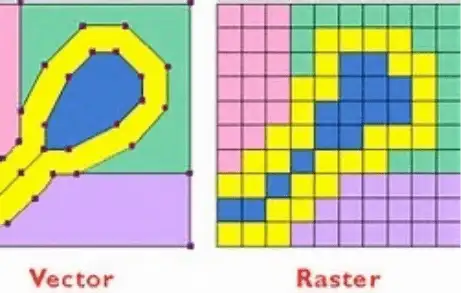
Comparison between bitmap and vector graphics
| Feature | Bitmap or Raster | Vector |
|---|---|---|
| Structure | Individual pixels | Points, lines, curves, and shapes |
| Typical laser use | Photo, grayscale, and image engraving | Cutting, scoring, and line engraving |
| Scaling | May lose quality when enlarged | Can be scaled while retaining defined paths |
| Common formats | JPG, JPEG, PNG, BMP, TIFF | SVG, DXF, AI, EPS, CDR |
A comparison of bitmap and vector graphics for laser cutting and engraving.
PDF files require additional attention because a PDF can contain vector paths, raster images, text, or a combination of these elements. Inspect the imported artwork before assigning cutting or engraving operations.
The table below compares several common software options used for laser cutting design, modeling, file preparation, and production setup.
| Software Name | Free or Paid | Main Application | Common File Formats | Machine Setup | Learning Level |
|---|---|---|---|---|---|
| AutoCAD | Paid | Engineering drawings, technical parts, construction, manufacturing, and dimensional design | DWG, DXF, DWS, DWT, PDF | Usually exported to control software or used with a compatible plug-in | Advanced |
| CorelDRAW | Paid | Vector graphics, text layout, signage, bitmap editing, and design preparation | CDR, AI, DXF, JPG, PSD, EPS, BMP, PDF | Exported to control software or connected through supported plug-ins | Intermediate |
| Adobe Illustrator | Paid | Vector artwork, logos, packaging, signs, illustrations, and cutting paths | AI, SVG, EPS, PDF, DXF | Designs are normally exported to compatible control software | Intermediate |
| Inkscape | Free | Vector drawing, text editing, SVG creation, and basic laser-file preparation | SVG, PDF, EPS, DXF, PNG | Designs are exported to compatible machine-control software | Beginner to intermediate |
| LaserMaker | Available for supported machines | Laser design, cutting and engraving setup, education, and production workflows | SVG, DXF, PLT, AI, JPG, BMP, PNG | Processing and compatible machine functions are integrated | Beginner-friendly |
A comparison of common laser cutting design software, file formats, applications, and learning levels.
The right laser cutting software depends first on machine and controller compatibility. CO2 laser cutting software such as RDWorks, AutoLaser, LightBurn, or LaserMaker may support job preparation and machine control, while AutoCAD, CorelDRAW, Adobe Illustrator, and Inkscape are primarily used to create or edit designs.
Vector files are generally required for cutting paths and line engraving. Raster files are better suited to photographs, grayscale engraving, and image-based artwork. Some formats, including PDF, can contain vector elements, raster images, or both, so users should inspect the file before sending it to the machine.
Before downloading or installing any program, verify the software version, controller, operating system, drivers, license, and download source. Thunder Laser users can check the official download center or contact technical support for software recommendations matched to their machine series.
Find the Right Software for Your Laser Workflow
Explore Thunder Laser software downloads, manuals, and compatible workflow resources, or contact our team for help selecting software for your laser machine.
Sprechen Sie jetzt mit unseren Experten!
Bitte hinterlassen Sie Ihre Kontakt informationen, damit wir Ihnen besser dienen können.
LASER SCHNEIDEN SOFTWARE FAQS
Zu den gängigen Optionen für freie Software gehören RDWorks V8, EzCAD, Auto Laser, Inkscape und Laser Maker. Die richtige Wahl hängt von Ihrem Controller, Dateiformat und Design-Workflow ab.
AutoCAD, CorelDRAW und Adobe Illustrator werden häufig für profession elle Zeichnung und Design vorbereitung verwendet. Photoshop und Maler werden häufig für die Bitmap-oder Foto verarbeitung verwendet.
Raster grafiken bestehen aus Pixeln und können bei Vergrößerung an Qualität verlieren. Vektor grafiken bestehen aus Linien und Formen, können also sauber skaliert werden und eignen sich besser für Lasers chneid wege.
Fotos sind normaler weise Bitmap-Bilder, daher werden sie haupt sächlich für die Laser gravur verwendet, anstatt zu schneiden. Das Lasers ch neiden erfordert im Allgemeinen Vektor pfade.
Zu den gängigen Vektor formaten gehören DXF, SVG, CDR, AI, EPS und PDF. Zu den gängigen Bitmap-Formaten gehören JPG, BMP und PNG, die haupt sächlich für die Gravur oder Bild verarbeitung verwendet werden.
FINDEN SIE DEN PASSENDEN LASER FÜR IHR NÄCHSTES PROJEKT
Entdecken Sie Thunder Laser Lösungen für unterschiedliche Materialien, Workflows und Produktionsanforderungen.

 Stable & Consistent MachinesUnlimited ApplicationRobust After-sales SupportFactory Direct Supply


